





Is your phone currently too hot to hold? Most guides claim this is "normal" for fast charging but if you feel heat radiating through your case, you have crossed the line into hardware damage. Excess heat breaks down battery chemistry and risks permanent motherboard shorts. Use this diagnostic to fid out if your device is safe or if you need to unplug immediately

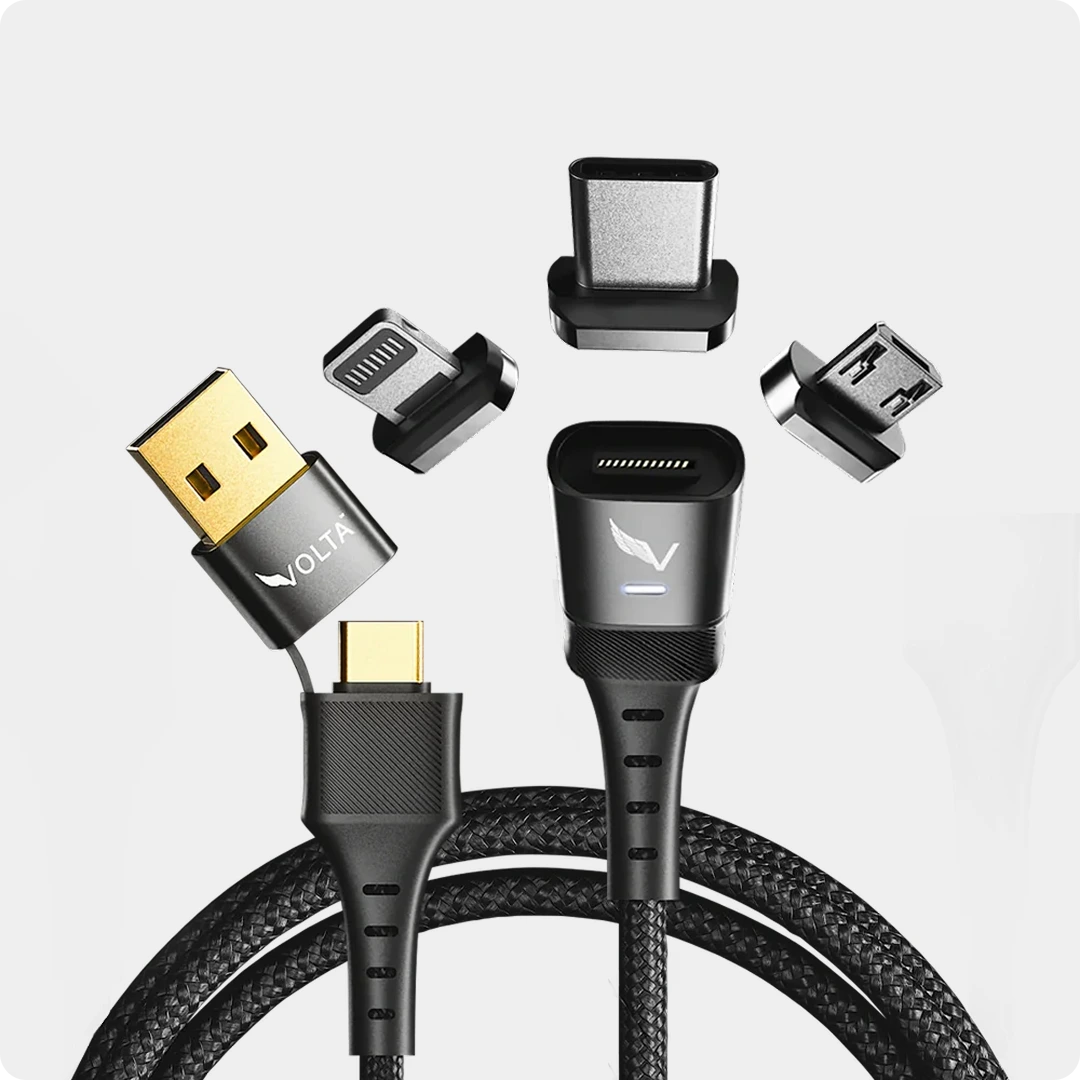
Volta MAX Cable
$50.00
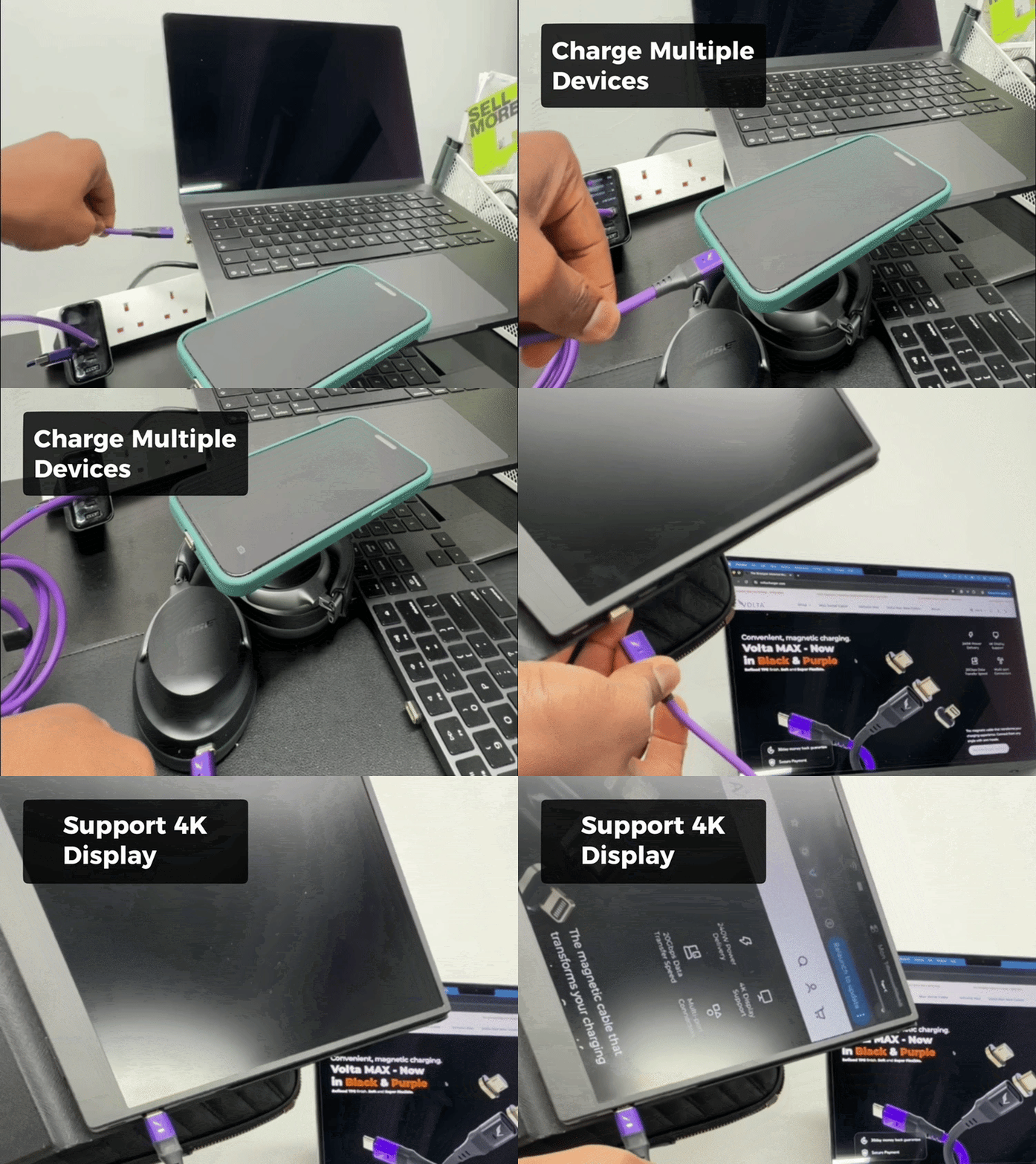
✅ Easy Magnetic Connection ✅ Snap to Charge Your Phone, Laptop, and More ✅ Charges ALL Apple Lightning, USB-C & Micro USB Devices ✅ Supports ...
- Is it normal for my phone to get hot while charging?
- What temperature is dangerous for a smartphone battery?
- Why does my phone say "Overheating" when it is not hot?
- Can overheating cause a green line or flickering on the screen?
- Does charging with a phone case on cause damage?
- The risks of fast charging and high-wattage chargers
- How to cool down your phone safely (and why the freezer is a mistake)
- How to identify a damaged or failing battery before it swells
- tips to prevent your phone from getting hot while charging
- FAQ
Is it normal for my phone to get hot while charging?
It is common for phones to become warm while charging because moving energy into a battery naturally creates heat. However, there is a clear distinction between "warm" and "dangerously hot."
Your phone uses internal safety systems to manage this temperature. If it gets too warm, the device will automatically slow down your charging speed to protect the hardware. If the heat continues to rise, it may shut down entirely to prevent a fire or internal component failure.
The Temperature Danger Scale
Use this table to check if your phone's current behavior is safe or if you are risking permanent damage:

The "10-Second Hold Test"
If you don't have a thermometer, use your hand. If you can't hold your phone firmly for 10 seconds because it is scalding your palm, it is not "normal". This level of heat indicates that your battery is venting energy as pure heat rather than storing it, which can lead to a swollen battery or a motherboard short.
What temperature is dangerous for a smartphone battery?
Smartphone batteries are engineered to operate within a specific thermal window. While minor warmth is expected, sustained exposure to high temperatures acts as a catalyst for permanent chemical breakdown.
The Damage Threshold
The internal chemistry of lithium-ion battery begins to degrade once it conistently exceeds 35°C (95°F). Once temperatures reach 45°C (113°F), you are no longer just "wearing out" the battery; you are entering a zone of irreversible damage.
- 0°C – 35°C (32°F – 95°F): The safe operating range for most modern smarphones.
- Above 40°C (104°F): Intenal Systems begin "thermal throttling," which deliberatly slows down charging speeds to prevent a fire.
- Above 45°C (113°F): The liquid electrolyte inside the battery starts to break down, accelerating the growth of the SEI layer (internal plaque) at 3x the normal speed.
- Above 60°C (140°F): This is the "Venting Zone." The battery may begin to off-gas, leading to a swollen casing or "thermal runaway," where the battery generates heat faster than it can dissipate it.
Why "Surface Temp" Matters
If the outside of your phone feels like it is burning, the internal battery temperature is significantly higher. Trapped heat causes the battery to lose its ability to hold a charge and can lead to sudden shutdowns even when the battery percentage appears high.
Why Your Phone Says "Overheating" When It is Not
It is a common complaint: your phone stops charging and displays a temperature warning, yet the device feels cool to the touch. This "ghost" warning usually points to a failure in the communication between your hardware and the operating systmem rather than an actual fire risk.
The Blown Thermistor Problem
Your phone relies on tiny components called thermistors; resistors that change their electrical resistance based on temperature. These act as the phone's internal thermometers.

- Sensor Failure: If the thermistor on the charging board or neat the battery is damaged, it may send a false reading of 80°C+ to the CPU.
- Safety Cut-off: Because the phone "thinks" it is melting, it will immediately disable charging and throttle performance to prevent a disaster that isn't actually happening.
Moisture and Port Debris
Sometimes the "Overheating" message is a generic error triggered by the charging port.
- Corrosion: Tiny amounts of moisture or "micro-arcing" from low-quality cables can damage the port pins.
- Resistance: Dirt or lint in the port increases electrical resistance, creating localized "hot spots" that the sensors pick up before the heat reaches the outside of the phone.
Software Bugs and Background Loops
A stuck system process can occasionally hijack the thermal management system.
- Crash Loops: If a background app or update is stuck in a "high-power loop," the processor may trigger a thermal alert even if the battery itself is stable.
- False Alarms: A simple restart or software update often clears these phantom warnings if the hardware sensors are still intact,
Can overheating cause a green line or flickering on the screen?
Excesssive heat is a primary cause of display malfunctions, specifically screen flickering and permanent pixel damage. While the battery is usually the focus of overheating, the screen is often the first component to show physical signs of thermal stress.
Thermal Stress on Display Components
Overheating affects the display in two main ways:
- Display Lag and Ghosting: High temperatures can cause the screen to become unresponsive, lag, or show strange colors and delays.
- Ribbon Cable Damage: Heat generated at the charging port or by the battery often migrates to the delicate ribbon cables that connect the screen to the motherboard. If these cables are exposed to extreme heat repeatedly, they can warp or lose their connection, leading to the permanent "green line"
The CPU Connection
The heat from the processor can also impact screen performance.
- GPU Throttling: When the phone's internal chips get too hot, the Graphics Processing Unit (GPU) slows down. This often results in visual artifiacts, flickering, or the screen frezing entirely as it struggels to render iages under thermal pressure.
- Freezing and Touch Failures: Prolonged heat exposure can cause touch functions to respond poorly or not at all.
Does charging with a phone case on cause damage?
While a case does not directly drain battery life, it can act as a thermal blanket that prevents your phone from shedding heat during the charging process.
The Insulation Trap
Most phone cases are made of materials like silicone, rubber, or plastic, which are atural insulators.
- Trapped Heat: these materials trap the heat generated by the battery and charging circuitry inisde the phone.
- Thermal Stress: Because the heat has nowhere to go, internal temperatures rise, causing the battery to reach its "degradation zone" much faster than it would without a case.
- Efficiency Loss: High heat increases internal electrical resistance, making the charging process less efficient and forcing the battery to work harder to absorb energy.
Impact on Fast Charging
The danger is amplified when using high-wattage chargers.
- Charging Throttling: When a case causes heat to build up, your phone's software will "throttle" or slow down the charging speed to prevent a fire.
- Component Wear: Prolonged exposure to this trapped heat can degrade delicate internal sensors, camera modules, and screen ribbon cables.
When You Must Remove the Case
- Overnight Charging: If you charge your phone while you sleep, removing the case is a simple way to prevent hours of sustained heat exposure.
- Heavy Design Cases: Bulkier, waterproof, or ruggedized cases provide great protection but are the worst offenders fo rtrapping heat.
- Fast Charging Sessions: If you are using a 30W+ fast charger, the heat generation is high enought that "naked charging" is highly recommended to protect the battery's long-term health.
The Risks of Fast Charging and High-Wattage Chargers
Fast charging is a massive convenience, but it is also the most aggressive thing you can do to your battery. While your phone is designed to handle it, the process forces a massive amount of enrgy into the battery cells in a very short time, which creates a significant internal friction and heat.
Does a High-Wattage Charger "Push" Too Much Power?
A common fear is that using a 65W or 100W laptop charger will "overload" a phone that only supports 25W. This is a myth.
- The "Pull" Rule: Power is pulled, not pushed. Your phone has a communication chip that tells the charger exactly how muh power it can saferly take. If you plug a 100W charger into a 25W phone, the phone will only pull 25W.
-
The Voltage Risk: Most overheating isn't caused by high wattage, but by 'dirty' power from uncertified bricks. This is why we use GaN (Gallium Nitride) technology in the Volta 140W Giga Charger. It doesn't just charge fast; it uses Programmable Power Supply (PPS) to talk to your phone every 10 seconds, adjusting the voltage in tiny increments to keep the battery up to 15°C cooler than standard fast chargers.

When to Avoid Fast Charging
- Avoid Overnight: Using a fast charger while you sleep keeps the battery at high voltage and elevated temperature for hours, which is the fastest way to kill battery health.
- Avoid in Heat: If you are in a hot car or direct sunlight, fast charging can push the battery past 45°C (113°F) almost instantly, causing immediate and permanent damage.
How to cool down your phone safely (and why the freezer is a mistake)
If your phone is currently overheating, the instinct to reach for the freezer for a "quick fix" is one of the most dangerous mistakes you can make. While it seems logical, it often leads to irreversible damage.
The Freezer Trap: Why Cold Kills Phones
Putting a hot phone in a freezer causes two "invisible" killers:
- Condesation: Just like a cold glass "sweats" in a warm room, moisture will condense inside your phone as it rapidly cools. This water can short-circuit the motherboard, damage connectors and render the device completely unusuable.
- Thermal Shock: Sudden, extreme temperature drops force the glass, metal, and plastic components to contract at differnet rates. This can lead to micro-cracjs in the screen or cause internal solder points to snap, killing the motherboard.
- Battery Damage: Lithium-ion batteries are sensitive to extreme cold. Freezing them can permanently reduce their capacity and lifespan.
Safe Ways to Cool Down Your Phone Fast
Instead of the freezer, use these safe, effective methods to lower the temperature without risking water damage:
- Unplug Immediately: Stop the energy flow. Charging is the primary heat source.
- Remove the Case: Your case is an insulator. Taking it off allows heat to dissipate from the back of the phone much faster.
- Use a Fan: Increasing airflow is the safest way to cool a device. Position your phone in front of a fa or even a car AC vent (but don't press it against the vent).
- Turn It Off: Powering down stops all background processes and CPU activity, giving the hardware a total rest.
- Avoid Direct Sunlight: Move the phone to a shady, cool, and flat surface. Do not place it on soft surfaces like a bed or sofa, which trap heat.
- Airplane Mode: If you can't turn it off, Airplane Mode cuts the power used by Wi-FI, Bluetooth, and cellular radios.
Identifying a Failing Battery Before it Swells
A battery doesn't usually swell without warning; it dies a "slow, noticeable death" first. By identifying these red flags early, you can replace the battery before it becomes a physical safety hazard.
1. The "Wobble" Test (The First Physical Sign)
Before a battery visibly bulges, it may expand just enough to change the shape of the phone slightly.
- The Flat Surface Check: Place your phone face down and the back down on a flat table. If the phone rocks or spins easily, the battery has likely begun to expand, causing the casing to bow.
- Stiff Buttons: If the physical bolume or power buttons suddently feel "mushy" or harder to press, internal pressure from a filing battery may be pushing against the frame.
- Screen "Oil Slicks". Applying light pressure to the screen might produce "rainbow" or "oil slick" patterns. This is caused by the battery pushing directly against the back of the display panel.
2. Erratic Power Behavior
- A degrading battery loses its ability to maintain stable voltage, leading to "glitchy" power readings.
- Sudden Percentage Drops: If your battery jumps from 80% to 50% in minutes, or drops 10% the second you unplug it, the internal cells can no longer hold a consistent charge.
- The "30% Cliff": Your phone unexpectedly shuts down while the indicator still shows 20% or 30% remaning. This happens because the battery's voltage has dropped below the minimum threshold requried to keep the phone running.
- AC Dependency: The phone functions perfectly while plugged in but dies almost immediately once removed from the charger.
3. Thermal Anomalies
Heat is both a cause and a symptom of a failing battery.
- Idle overheating: The phone feels hot to the touch even when it is not being used for intensive tasks like gaming or GPS.
- Charging Heat Spikes: The device becomes significantly hotter than usual during a standard charging cycle, indicating high internal resistance within the battery cells.
3. Software Diagnostics
- Most modern smarphones provde a "Battery Health" percentage in the settings menu.
- The 80% Rule: Most manufacturers consider a battery "consumed" once its maximum capacity drops below 80%. At this stage, you will likely experience performance "throttling" as the phone tries to prevent sudden shutdowns,
- Peak Performance Capabilty: Check if your phone reports that is no longer capable of supporting "Peak Performance." This is a definitive sign that the battery hardware is failing.
Tips to Prevent Your Phone from Getting Hot While Charging
Preventing overheating requires a combination of high-quality hardware and better charging habits. Follow these steps to keep your device cool and protect your battery's lifespan.
1. Optimize Your Charging Environment
- Charge on Hard Surfaces: Place your phone on a flat, firm surface like a wooden desk or glass top during charging. Soft materials like beds, sofas, or pillows trap heat and block ventilation.
- Avoid Direct Sunlight: Keep your phone in a cool, shded area. Direct sunlight or bing near heat sources like radiators will cause temperatures to rise rapidly even before you plug it in.
- Increase Airflow: Charging in a well-ventilated room helps dissipate heat. If your phone consistently runs hot, consider placing it neat a small fan while it charges.
2. Manage Device Workload
- Stop Heavy Usage: Avoid playing games, streaming high-definition video, or making long video calls while your phone is plugged in. These activites strain the processor and generate extra heat simultaneously with the battery's charging heat.
- Close Background Apps: Swipe away unused apps before charging to reduce the load on your phone's processor and battery.
- Enable Airplane Mode: If you don't need to stay connected, switching to airplane mode turns off power-hungry features like Wi-Fi, Bluetooth, and GPS, which helps keep temperatures lower.
3. Smart Charging Habits
- Remove Your Case: Take off your phone's case before plugging it in to allow for better heat dissipateion. This is especially important for thick, silicone, or metal cases that act as insulators.
- Avoid Full 0-100% Cycles: Don't wait for your phone to die to charge it, and try to unplug it once it reaches 80% to 90%. This avoids the final high-stress "trickle charge" phase where heat generation often spikes.
- No Overnight Chraging on soft Surfaces: If you must charge overnight, ensure the phone is on a hard surface and not buried under bedding, which can lead to excessive heat buildup over several hours.
4. Hardware and Software Maintenance
-
Use Quality Accesories: Only use original or manufacurer-approved chargers like the Volta GaN Charger and cables like the Volta Magnetic cables. Cheap or counterfeir chargers ofte lack the sophisticated voltage and current regulation needed to prevent overheating.

- Keep Software Updated: Regularly update your phone's operating system and apps. Updates often include critical bug fixes and performance optimizations that improve thermal management.
- Monitor Battery Health: Use built-in battery health features in your settings to check for degradation. If your battery is significantly worn out, it will naturally generate more heat and should be replaced.
FAQs About Phone Temperature and Charging Safety
Is it better to charge a phone from 20% to 80% to reduce heat?
Yes, keeping your battery within this range puts less chemical stress on the cells and creates less heat than forcing it to reach 100%. Most modern phones slow down charging once they hit 80% specifically to manage thermal stability.
Does wireless charging generate more heat than wired charging?
Yes, wireless charging is less efficient than a wired connection, and around 20–30% of that energy is lost as heat. This electromagnetic induction process naturally causes both the charger and the phone to stay warmer for longer periods.
Why don’t manufacturers recommend charging in bed?
Smartphones require open-air circulation to dissipate the heat generated during charging. Soft surfaces like mattresses, pillows, and blankets act as insulators, trapping heat and significantly increasing the risk of fire or battery swelling.
Can a hot phone cause a fire?
While rare, prolonged exposure to high temperatures can lead to "thermal runaway," where a damaged or faulty battery leaks flammable electrolytes. Following safety procedures, like keeping external heat sources away and avoiding overcharging, greatly reduces this risk.
Do power banks cause phones to heat up more than wall outlets?
Only if the power bank is of low quality or has an unstable voltage output. A high-quality power bank that matches your phone’s fast-charging protocol (like USB-PD) should perform exactly like a standard wall charger without extra heat.
Can background syncing apps affect charging heat?
Absolutely. Services like iCloud, Google Photos, or background software updates keep the processor active while the battery is already heating up from the charger. This "double load" is a leading cause of noticeable temperature spikes.

Volta MAX Cable
✅ Easy Magnetic Connection ✅ Snap to Charge Your Phone, Laptop, and More ✅ Charges ALL Apple Lightning, USB-C & ...


Zostaw komentarz
Ta strona jest chroniona przez hCaptcha i obowiązują na niej Polityka prywatności i Warunki korzystania z usługi serwisu hCaptcha.